Table of Contents
Hey! Chris here -- this week is all about monthly balance sheet consolidation.
Last time I wrote about auditing my Google Sheets model with Claude.
Today, I'll explain how I consolidated a bunch of separate balance sheet files into a single, master copy that gets uploaded into my financial model (a perfect AI use case).
And fun fact: what started as a two-hour project now only takes a few minutes.
The backdrop: one balance sheet file per month
On a recent client engagement, they have an interesting snag when exporting financials: a consolidated income statement comes out fine (one Excel sheet, all the dates along the top), but the balance sheet comes out separately (each month its own file).
When I first started the project, it was about 3.5 years of financials I had to stitch together.
And now, each month when the books close, the client sends all the YTD monthly files.
For the September close, it was nine balance sheet files.
So what I'm looking at each month is a lot of manual, error-prone work, that normally isn't required on other engagements, just to do step one of the model update -- rolling forward the financials.
Monthly balance sheet consolidation by hand
The first time around, I did everything by hand and it took nearly two hours.
Accounts had been added and changed over time, so I needed a pretty insane UNIQUE + VSTACK formula combo to get the full account list.
Then, I used INDIRECT lookups to pull the information from each month's sheet.
And finally, there was a mountain of "checks by hand" making sure all the subtotals tied and that the entire thing balanced.
I got it right, and was glad I did the work, but it was slow.
And then my brain thinks, aha, this can become a skill!
Turning monthly balance sheet consolidation into a Claude skill
A quick reminder: a skill is a saved set of instructions Claude follows the same way every time.
The new verb to get this done is "skillify."
And these days, you can build skills directly inside the Claude Excel plug-in, so as you go through your file, you can give it very explicit instructions like "Step 1: [do exactly this], then Step 2: [do this next], etc. etc."
(*Note, you cannot update skills inside the Excel plug-in (yet), so you'll need to make changes from a separate Claude chat, or alternatively, the Excel plug-in can save you a new version, e.g., balance-sheet-consolidation-refresh-v2, and you can delete / deactivate the previous one).
The prompt I used
When I took a step back, what I wanted to accomplish was pretty simple: combine these files into a consolidated balance sheet.
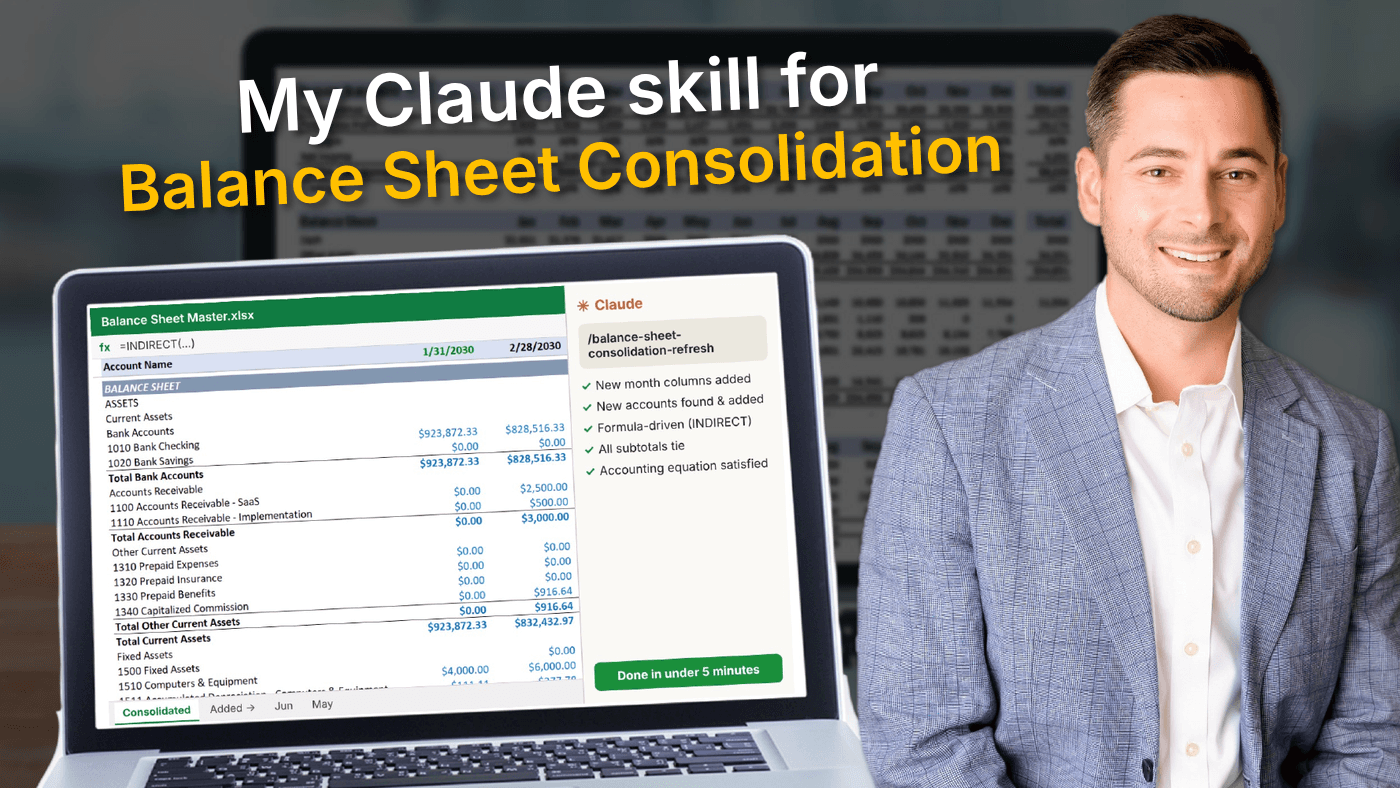
So I uploaded all the latest balance sheet files into the master file (alt + e + m > create a copy > to book: balance sheet master), and gave it a simple prompt like:
This is a balance sheet consolidation file, please take all the latest tabs I just added and update the consolidated view. Please make sure everything is formula-driven and comes with double checks to ensure all subtotals tie and the accounting equation is satisfied. Once we're done and everything is correct, I want to record what we did as a skill.
Here's how it did...
What came back
Thankfully, since I had done this by hand the first time, the skill had a lot of context to work with.
It saw the consolidated accounts, the INDIRECT lookups, and had pretty good direction on how to add the new files.
It even picked up on the one-off formulas I had used previously to avoid duplicate lookups.
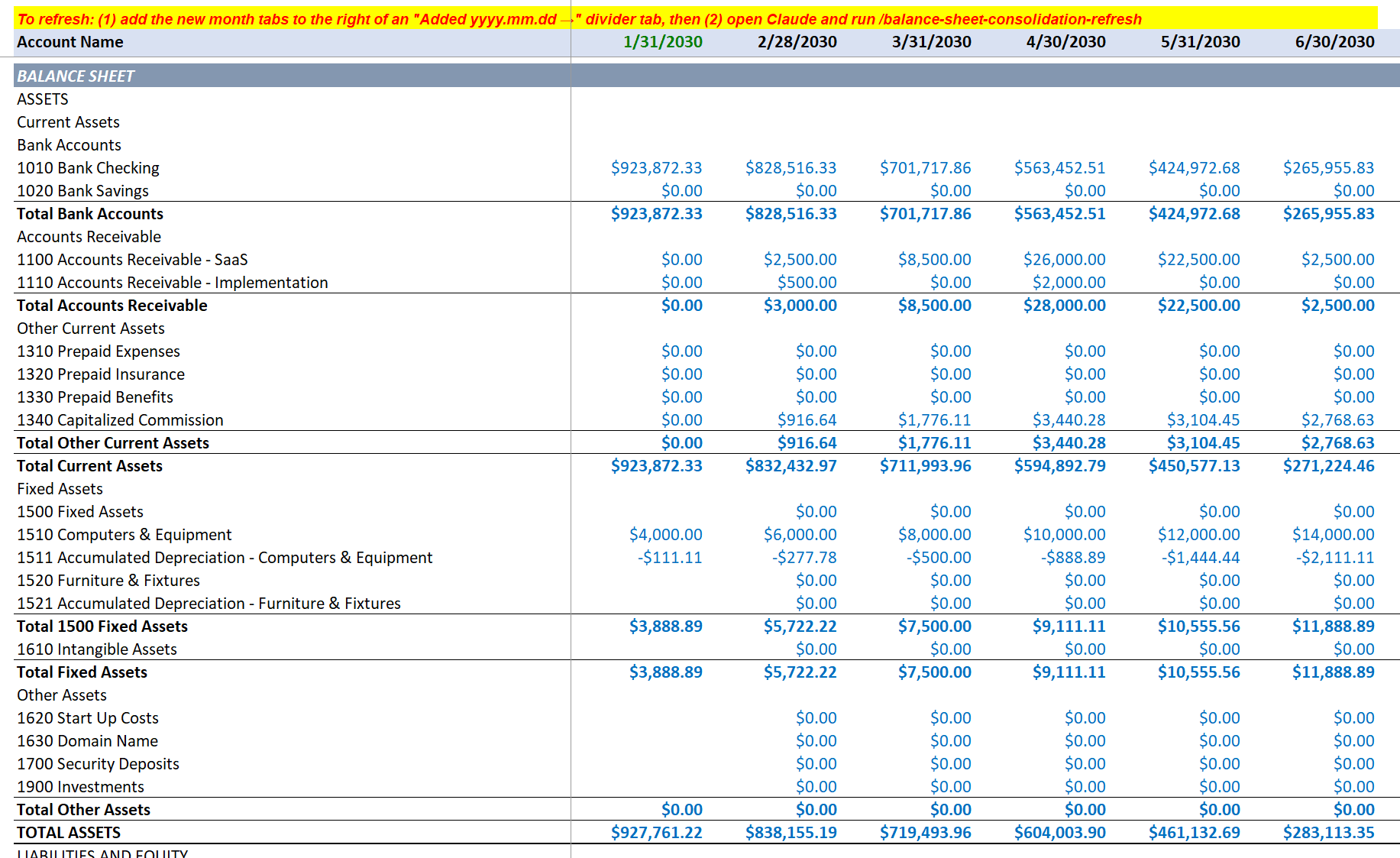
So now, it sees all the new uploads, overwrites anything old, adds new columns (for each new month), and performs all the double-checks I could ask for (more than I asked for if I'm being honest).
In cell B2 (because no one starts in A1), there’s a super quick instruction that says "add the new month tabs to the right of an ‘Added yyyy.mm.dd →’ divider tab, then run /balance-sheet-consolidation-refresh."
The entire process now takes less than five minutes.
And that's not some AI hype slop BS -- I've watched the clock -- it's barely a few minutes, and I can actually walk away from the computer while it performs the work (that was the vision all along, right?).
The human review
Despite getting starry-eyed as always with AI, once it's done, I still require a human review.
After all, I'm responsible for the output of this model, not AI.
Old school checks
So then I do a bunch of old school stuff:
- Just look at the latest columns
- Scroll down with my mouse like a psychopath
- F2 on a bunch of subtotal formulas
- Check to make sure the accounting equation is actually correct
Once all that's done, then I copy/paste values into the financial model itself.
The model as the final double-check
And my model serves as the final double-check, because if something was out of balance, or Net Income didn't tie back to the source data, I would be notified on my error checking tab.
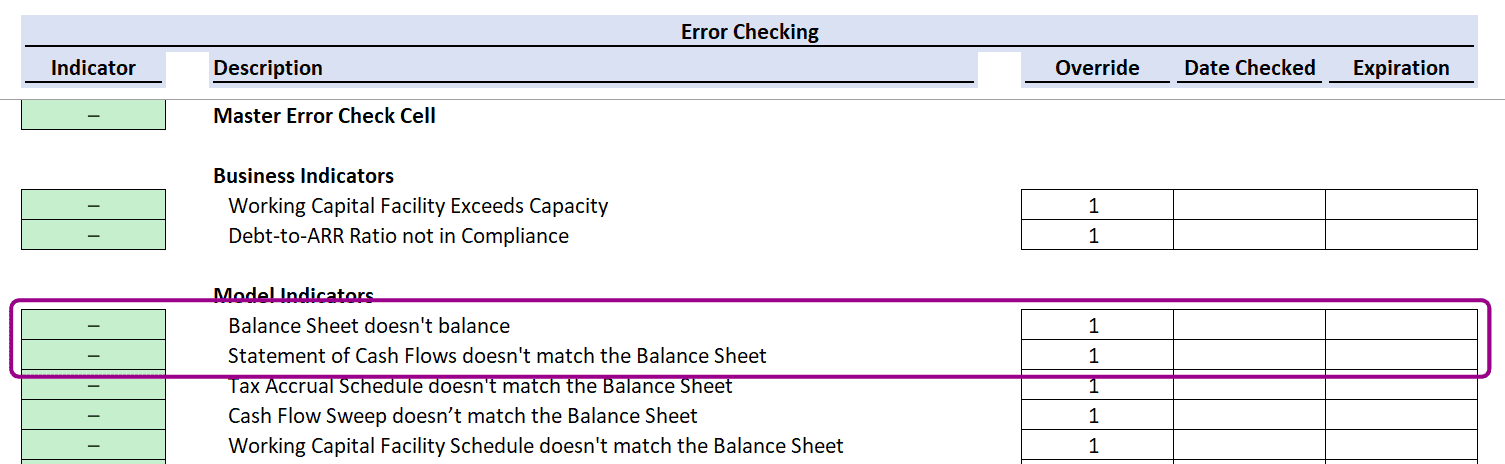
This is two layers of sanity checking that gives me the confidence to say, okay, this is correct.
And now, the update is nearly as fast as if the client sent me a consolidated BS in the first place.
Takeaways
- Doing it by hand first isn't required, but it's why mine worked on the first try. If you guide Claude step-by-step through your file, and then say you want to "skillify" everything you just did, it will do a pretty darn good job.
- The best skill candidates -- something that repeats every month, that you've already done on your own, and has ways to double-check itself (and these little opportunities are everywhere in our work).
- Make sure you (the human) check in at various points (what I like to call a "start and stop skill") or review everything at the end. You are still accountable for the results.
If you want the fundamentals behind this, my free guide walks through building the balance sheet in 10 steps. Grab it here.
Until next time.
—Chris
Thanks for reading 🙂.
When the time is right, here are some ways I can help you:
- My financial modeling program teaches you to build 3-statement & 13-week cash flow models from scratch; this is the pre-requisite skill that gives me the confidence to use AI.
- I also do consulting work and you can email me directly -- I build custom financial models for FP&A teams (and PE as well).