Table of Contents
Hey! Chris here -- this week it's QuickBooks to Excel, and how I get financials into my model.
Last time I wrote about how I built a balance sheet consolidation skill with Claude.
This week, I'm doing some Q&A, because this question comes up a lot.
A reader (Michael) asked: do you pull actuals straight from QuickBooks, or export and import?
Michael said he was comfortable modeling, but getting the data into the model has "always been a gap."
A lot of my clients work from QuickBooks (lower middle market), but my process is basically the same whether it comes from QBO, Xero, NetSuite, etc. -- as long as they have some kind of "export to Excel" option, we're good.
Today, I'll walk through how I refresh the model (quickly), plus how AI fits into the picture.
The short answer: QuickBooks to Excel, then a static copy
Might be surprising to hear, but I don't like live data hookups flowing directly into my model.
The connection is okay, but I'm wary about the data.
I prefer to make a copy of any connected data so the model exists in its own tiny universe, and I can always go back to the very source from whence everything came.
So the tabs might look something like this:
- Tab 1: Income Statement Connector (live)
- Tab 2: Income Statement Values (static)
The static tab drives the model.
So to answer Michael's question directly: it's a hybrid -- I'll bring financials into the model with some kind of connector, but then I prefer to copy/paste the data somewhere else in the model to make it static, which mirrors the "export and import" approach.
Why I break the link (even with something reliable like Power Query)
One of the most common ways to pull data into a model is with Power Query.
And what I'll often do is create custom code (with the help of AI) to pull the latest CSV from a folder on my drive into the model.
But once the data is in, I'll do the copy/paste from there (to that "static" tab I mentioned above).
I "break this link" because data connectors aren't always reliable -- the site is down, the layout changes, the code gets busted, it's missing transactions, or your macros decide they no longer work.
And if that connection, with live data, affected everything else downstream in my model, I'd find myself opening the file to a million #REF! errors in a panic attack.
Can't have that.
So I bring it in fast, but copy it as a fail-safe.
The QuickBooks to Excel update process
Now, what happens if the new data has different accounts from the existing model?
Here are the steps I take once I've got my "static copy" ready to go.
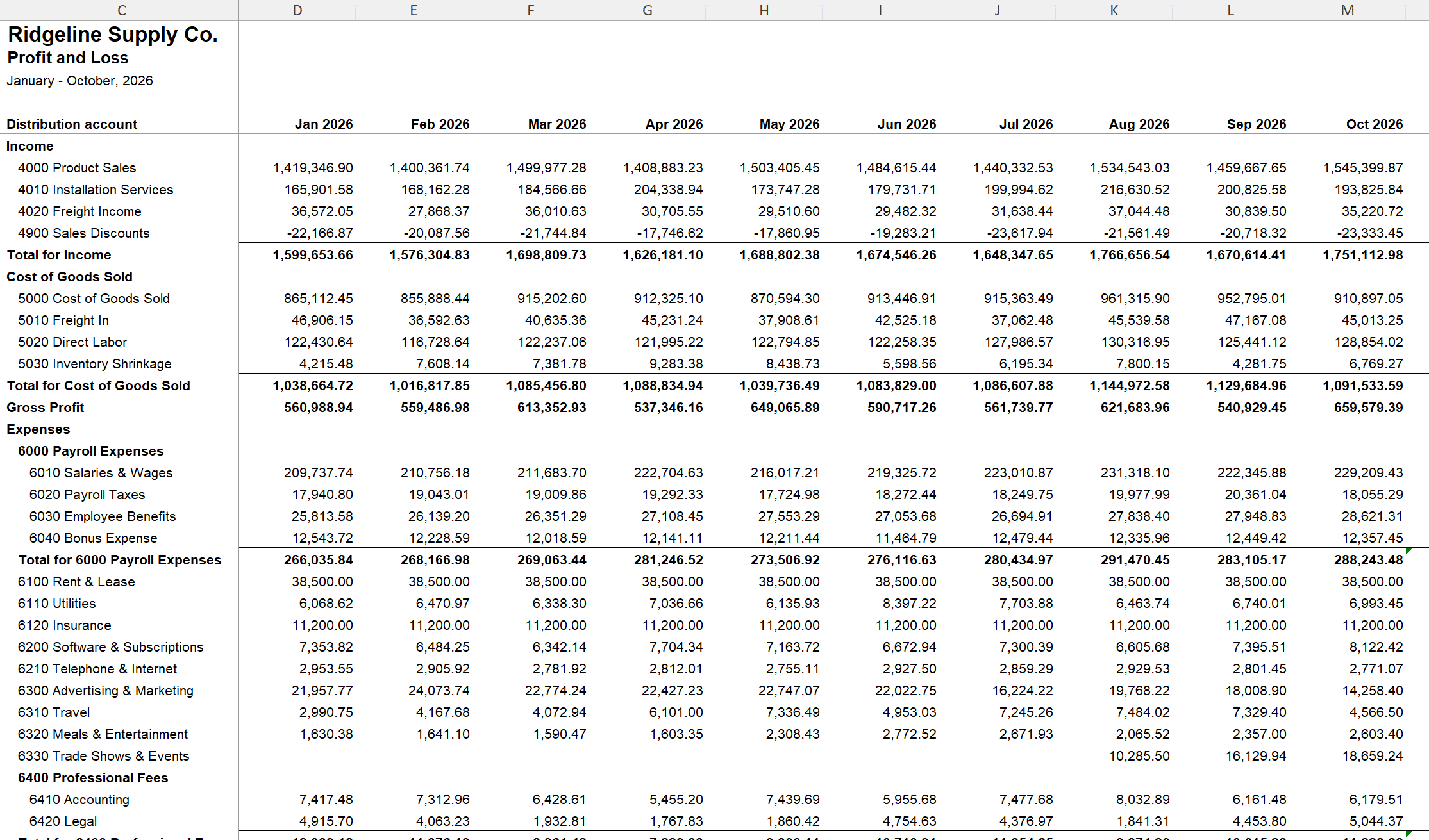
It all starts with this -- your standard QuickBooks output:
Insert two helper columns
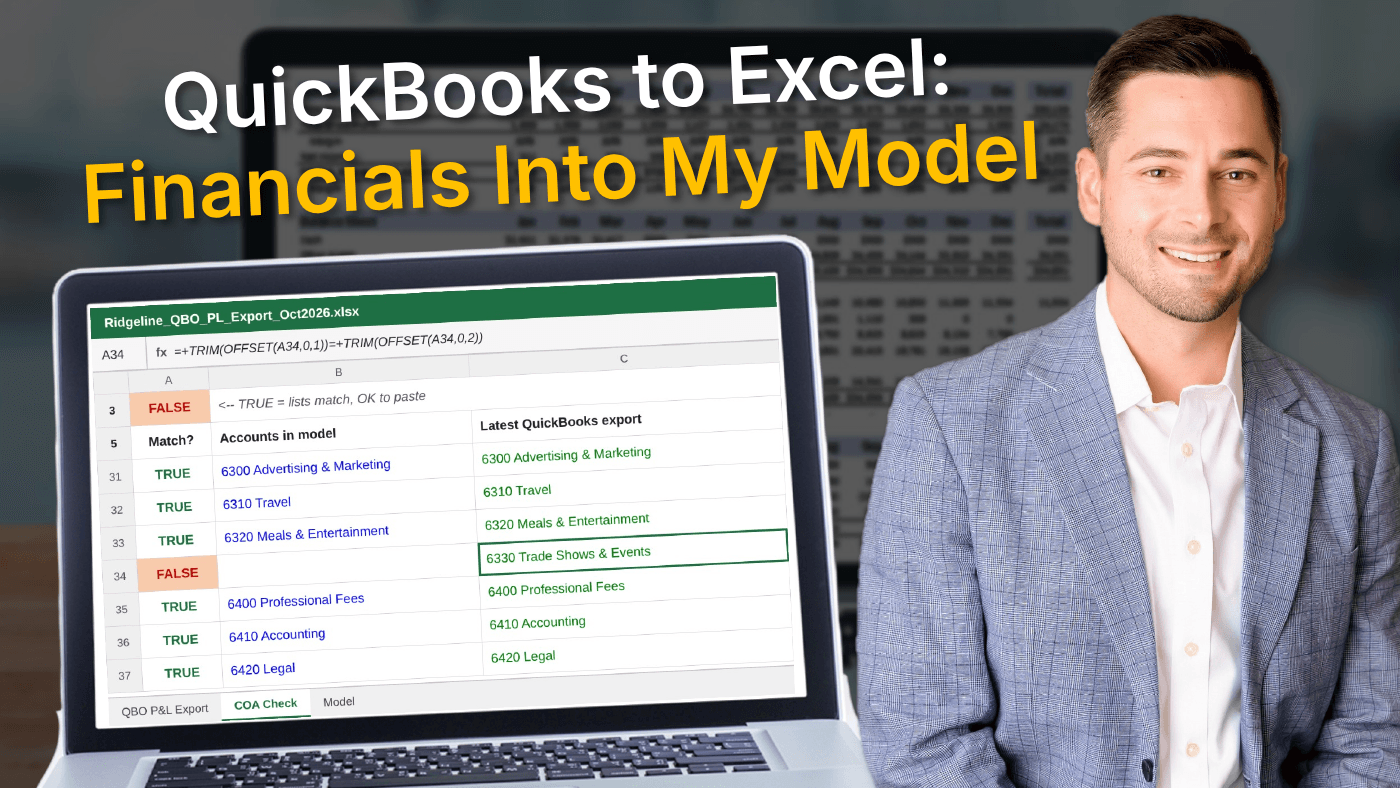
First, I'll insert two columns. Column B will show the accounts as they currently exist in the model, and Column A utilizes a double-check formula:
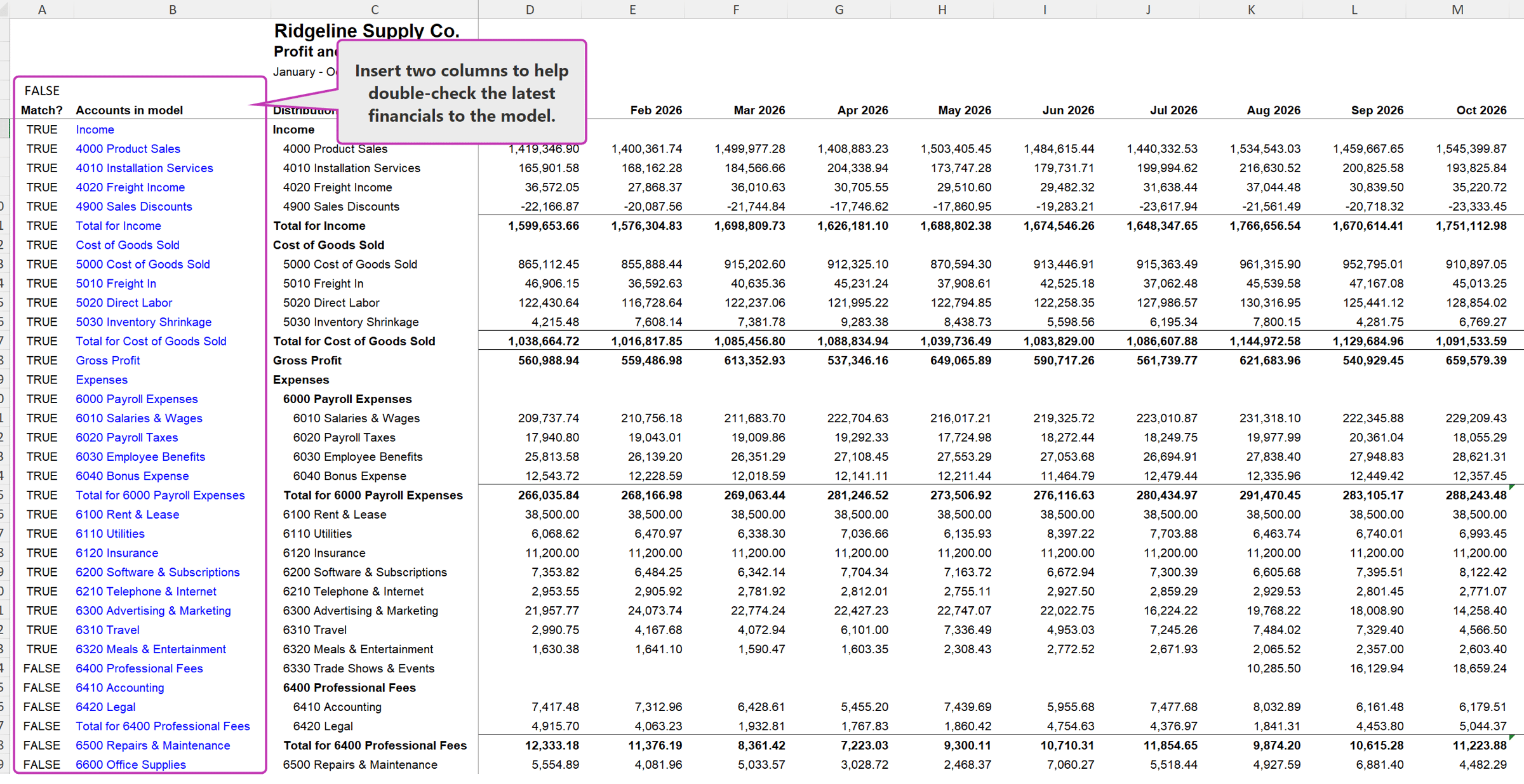
The OFFSET double-check formula
In column A, I drop in this gem of a formula:
=+TRIM(OFFSET(A6,0,1))=+TRIM(OFFSET(A6,0,2))
It checks if the account in Column B (the model) is equal to the account in Column C (the latest financials).
When it returns a FALSE result, it means the accounts differ.
So that's where a new account normally needs to be added (or deleted, or name changed).
Add the new account, then paste
In this instance, a new account is needed, so I press Ctrl + Shift + = to "shift cells down" (just column B) and make room:
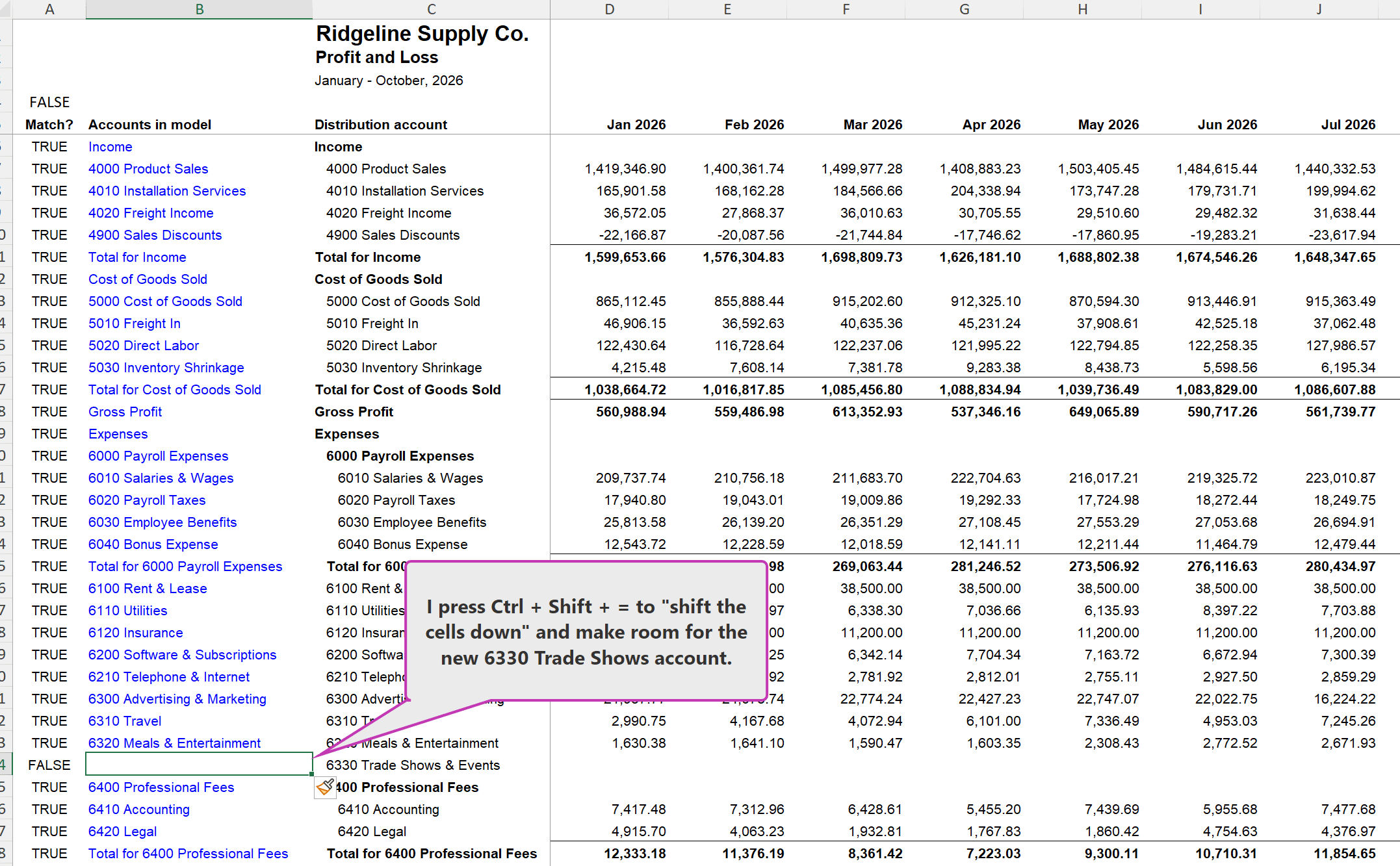
Now the beauty of the formula in Column A:
Since the formula is self-referencing using OFFSET, it still compares the same row in columns B and C even though I've shifted things down.
At this point, everything is returning TRUE except for the one new account.
I copy/paste the new account into my model list (column B):
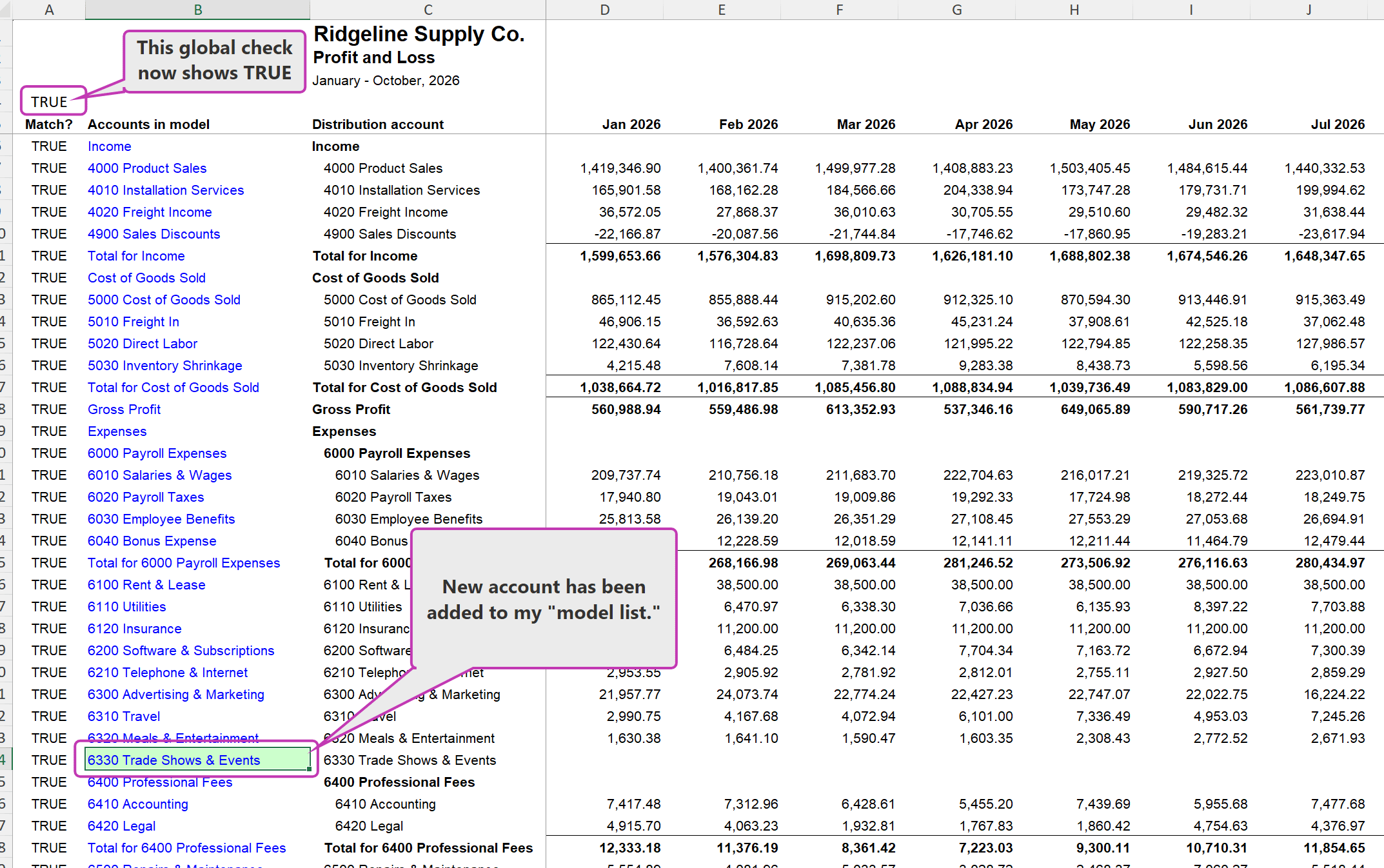
Since the global check at the top now shows TRUE, I know my lists reconcile.
Then I add the same account to the model itself (insert a row, copy the name).
And then, I can paste this entire sheet directly into my model.
Whole thing updated.
You repeat this exact same process for the Balance Sheet.
I'll admit, it takes a few tries to get it right at first (and memorize the keystrokes, etc.), but once you do, it typically takes less than 3 minutes to update the entire file.
(And as I'm typing, I'm thinking to myself that this needs to be a YouTube video, so I'll follow up when it's ready.)
Where AI comes in now: mapping
As a final step (and this happens inside the model itself), you would tag all the individual accounts to a larger, roll-up account so your three statement model captures everything correctly (via SUMIFS or SUMPRODUCT):
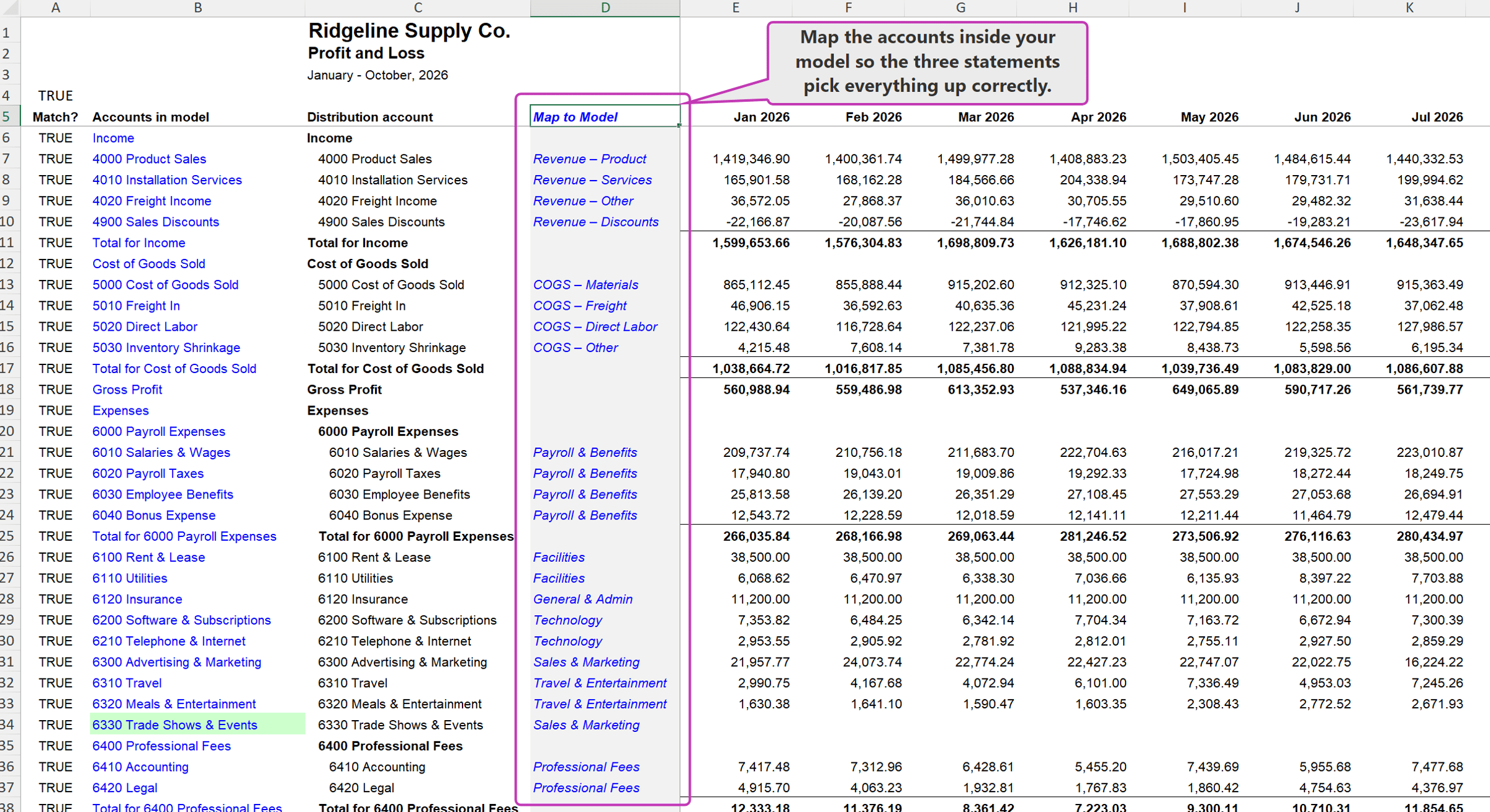
And where I've used AI recently -- making my tags more accurate.
Previously, I would use the "eyeball test" -- go down, line by line, and tag things as best I saw fit.
Then, in a follow-up meeting, I would confirm with the client if my tagging was correct.
(And oftentimes, they'll just say "sure, sounds good.")
Where AI has been great is spotting accounts my eye may not pick up on (maybe they're named differently, have evolved over time, or I just plain missed it -- I am human, after all).
Recently, in a SaaS model, the commission expense, amortization and payouts weren't talking to each other the way they should.
AI helped me identify accounts that fit this mold. Turns out, they had strange names that my eye didn't pick up on.
By changing the tagging (after my review and approval), we were then able to rely on the history, and correctly build a commission forecast.
That's an entire meeting+ saved by leaning on AI.
Now, I knew what was "off" in the model, so I knew what to look for, and I knew how to check it.
And these are the core fundamentals I keep coming back to. The years of modeling. The subject-matter expertise.
Takeaways
- I still think the hybrid approach is safer. If a live data connection through and through works for you -- go for it. I like bringing the data in via connector, then copy/pasting it somewhere else as a fail-safe.
- Use my formula if you go manual. If you want a quick way to do it, grab the OFFSET formula I talk about above -- it's an easy way to compare and edit two lists of accounts. It's the same process whether you use QuickBooks, Xero, NetSuite, whatever.
- Let AI help with mapping, but keep the judgment. It's really good at spotting accounts that you may miss (because it can analyze the history in a few seconds), but you need to zoom out and confirm it makes sense.
Use the tools at your disposal and ask if the juice is worth the squeeze. In my world, it takes less than 3 minutes to get this all done manually, and that's fine by me. But if you have the tools and interest to go live, then by all means, let it rip.
And if you want a starting point for the model side, I have a free income statement template -- grab it here.
Until next time.
--Chris
Thanks for reading 🙂.
When the time is right, here are some ways I can help you:
- My financial modeling program teaches you to build 3-statement & 13-week cash flow models from scratch; this is the pre-requisite skill that gives me the confidence to use AI.
- I also do consulting work and you can email me directly -- I build custom financial models for FP&A teams (and PE as well).
A quick note: I wrote this post, then used AI to help tidy it up for search.